Free software. Supported by people.
At Protomota, we believe software should be free. OpenTalon comes with every feature included. If it helps you keep track of your work, buying me a coffee helps keep the app running and supports its development.
Buy me a coffeeTips are entirely optional. Every feature stays free.
Feedback
Report a bug, suggest a feature, or tell us what’s working.
Send feedbackGet help with OpenTalon
Get help with setup or troubleshoot an issue on Mac, iPhone, or iPad.
Open a support ticketDownload OpenTalon for Mac.
Free · Apple silicon · macOS 14 or later
Signed by Protomota · Notarized by AppleAutomatic, signed updates
How to install OpenTalon
OpenTalon checks for updates automatically, and every update is signed by Protomota. To check anytime, choose OpenTalon → Check for Updates… in the menu bar.
-
Open the disk image
In Finder, open Downloads and double-click
OpenTalon-1.0.6.dmg. -
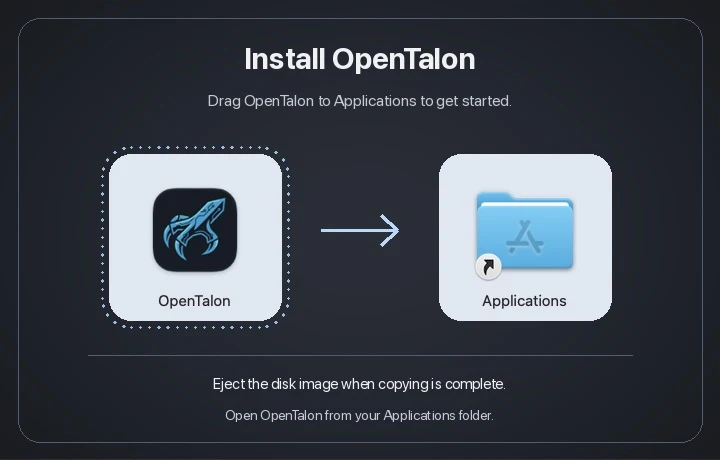
Move OpenTalon to Applications
Drag OpenTalon onto the Applications shortcut in the installer window. If Finder asks, choose Replace. Then eject the disk image.
-
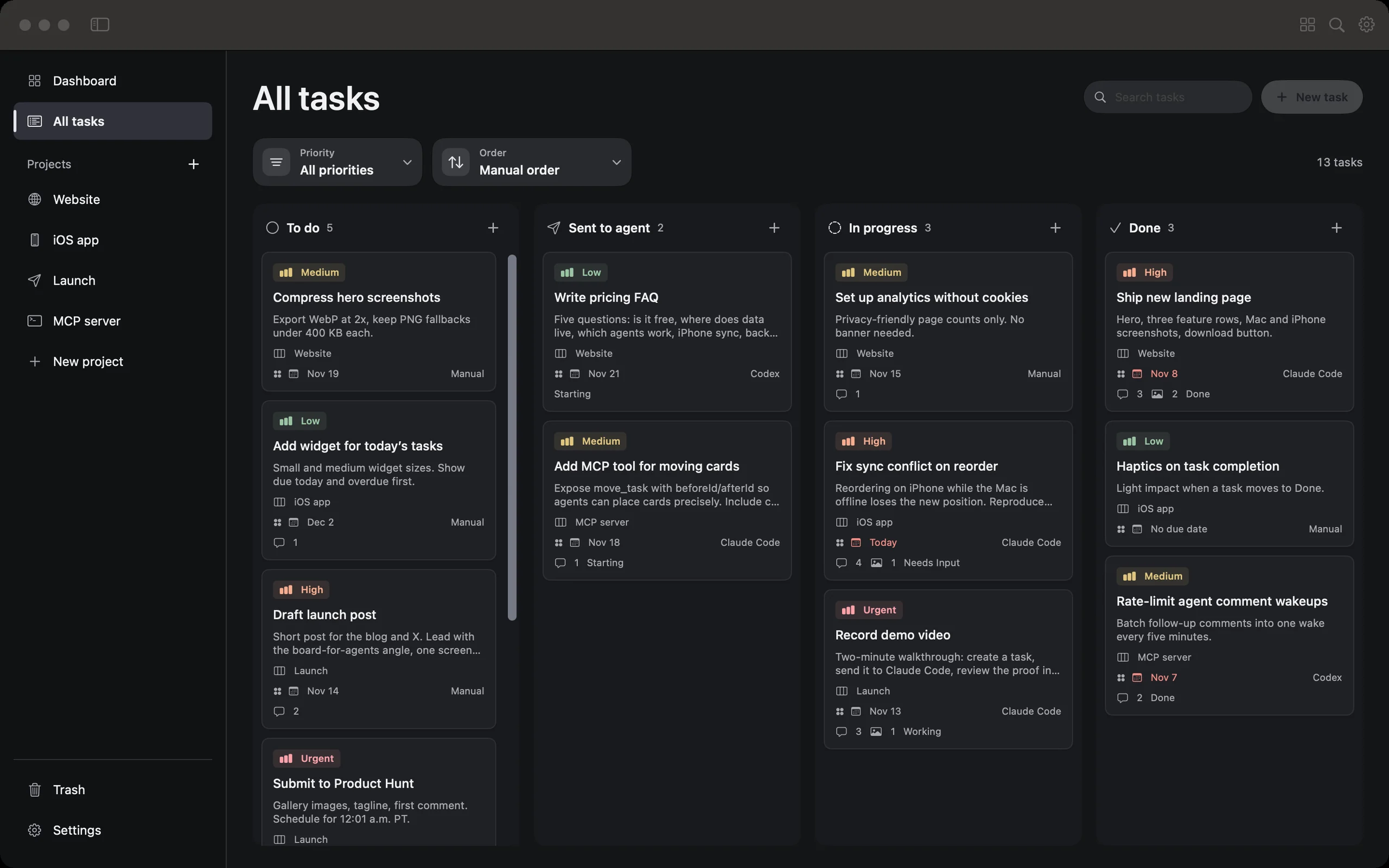
Open the app
Open OpenTalon from Applications. If macOS asks you to confirm the first launch, click Open.
Workspace already open?
Quit the other copy of OpenTalon and click Retry. If the other copy is running in the background, open Activity Monitor, search for OpenTalon, select the other OpenTalon process, then click Stop → Quit. If you’re using version 1.0.2 or earlier, reopen OpenTalon after quitting the other copy.